How to use a Word seating chart template
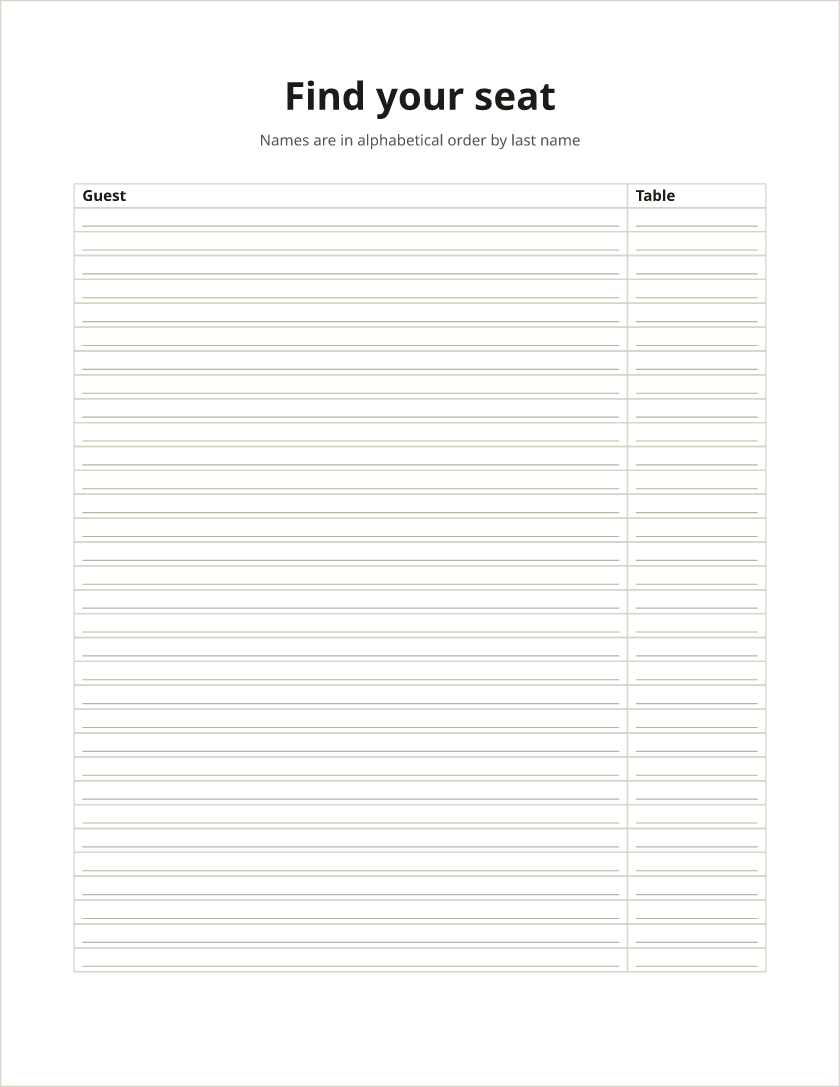
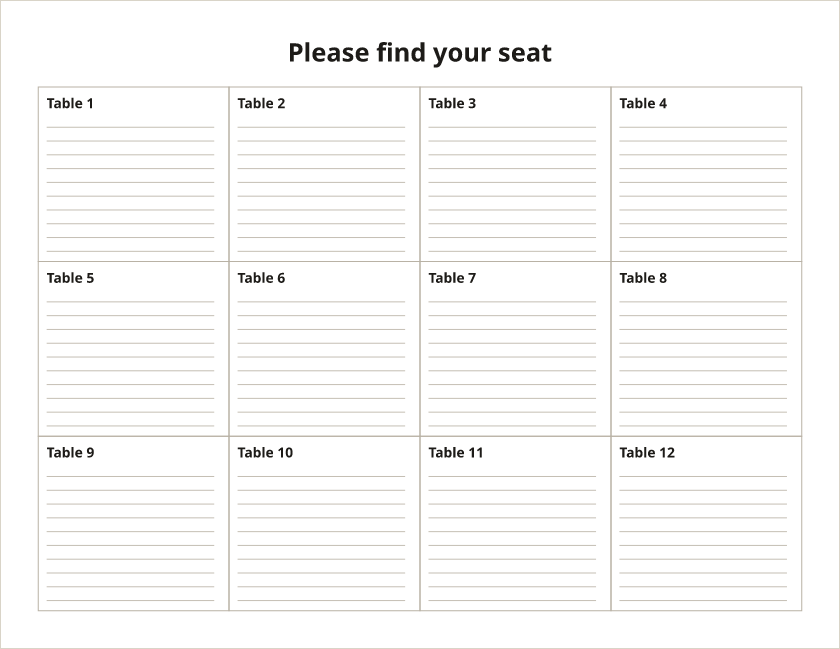
- Download a template. Pick the A–Z list or the chart by table below, or one of the round-table, wedding or classroom Word templates.
- Open it in Word. It opens in Microsoft Word, Pages, and Google Docs after you upload it to Google Drive.
- Type the names. Click a line and type over it. Press Tab in the last cell to add a row, or delete the rows you don’t need.
- Sort and print. Sort the A–Z list by the Guest column, then print it or save it as a PDF.
Word seating chart templates
Download for Word (.docx)
Download for Word (.docx)
The A–Z list is the one guests read at the entrance: find your name, then your table. Add rows with Tab for more guests; it continues onto a second page. The chart by table lists who sits at each table; copy or delete boxes to match your room, and change “Table 1” to a table name if you use them. Both print names at 11 points, which suits a list at the door. For a sign read from a step away, names need about 20 points: a print shop can enlarge a Letter page to 17 × 22 in, which doubles them, or see what size to print a seating chart sign.
More Word templates
- Round tables: a numbered list for every seat, for 12 tables of 8 or 10 tables of 10. More on the round table templates page.
- Wedding: a head table and ten tables of ten, with numbered seats. See the wedding seating chart template.
- Classroom: a grid of 30 desks under “Front of the room”, a line in each desk for a name. See the classroom seating chart template.
How to make a seating chart in Word
- Choose Insert > Table and make a table with two columns, Guest and Table, and a row for the headings.
- Type one guest per row, last name first if you’ll sort by last name. Press Tab in the last cell to add a row.
- Click in the table, open the table’s Layout tab (Table Layout in some versions), choose Sort and sort by the Guest column, with “Header row” ticked.
- For a chart by table, choose Layout > Orientation > Landscape and insert a table of 3 or 4 columns, one box per table.
- For a sign, make the names about 20 points or more so they read from a step away. Then print, or choose File > Save As and pick PDF.
Word is good for lists and signs. It can’t tell you who is left without a seat or whether a household fits at one table, and drawing the room with Insert > Shapes is slow. The chart above does that part: add your guests, press Smart arrange, then Download PDF for the floor plan, an A–Z list and a list for each table. For a poster, use the seating chart sign maker; for table numbers you can edit in Word, the seating card maker downloads a Word file.
Google Docs and Pages
Upload the .docx file to Google Drive and open it with Google Docs, or open it in Pages on a Mac. The tables and lines come across; if the fonts look different, the template uses Calibri, and any clear sans-serif font works. For a spreadsheet instead, see the seating chart template for Excel.
Frequently asked questions
Is there a free seating chart template for Microsoft Word?
Yes. Every Word template on this page is a free, editable .docx file, with no sign-up and no watermark.
How do I make a seating chart in Word?
Insert a table (Insert > Table) with a Guest and a Table column, type one guest per row, then sort it by name with Sort on the table’s Layout tab. For a chart by table, turn the page to landscape and use a table of boxes, one per table.
Can I use these templates in Google Docs?
Yes. Upload the .docx file to Google Drive and open it with Google Docs. Pages on a Mac opens it directly.
Can I get the seating chart as a PDF?
Yes. In Word, choose File > Save As and pick PDF. Or fill in the chart above and press Download PDF: it prints the floor plan, an A–Z list and a list for each table.
Can Word draw the floor plan?
Only by hand, with Insert > Shapes. The chart above draws the room to scale, seats everyone with Smart arrange, and prints it as a PDF.
Is there a classroom seating chart template for Word?
Yes: a grid of 30 numbered desks under “Front of the room”, on the classroom seating chart template page. See the classroom templates.