How to make a seating chart QR code
- Make your seating chart. Start from the reception example or blank, add your guests and seat them by dragging, by list or with Smart arrange.
- Open the QR tools. Press Make a QR code above (or Print & export, then Make a QR snapshot).
- Check what goes in it. Read the list of what the QR includes, tick that you have reviewed it, and choose Standard or higher error correction.
- Prepare and test. Prepare the QR, open the guest preview and search for a few names. Then download the SVG, PNG or a Letter or A4 PDF sign.
- Print and place it. Print the PDF at 100%, scan the printed sign with a couple of phones, and keep a printed seating list next to it.
The chart above is a reception for 42 guests. Press Make a QR code to try the QR tools on it, or press Use this layout to keep the tables and add your own guests first. The QR always holds the chart as it is when you make it.
What guests see
Guests point their phone camera at the code and open the link. The chart opens in the browser with a search box: they type part of their name and see their table and seat, with the seat highlighted on the floor plan. If two guests share a name, both appear; anyone not seated yet is shown as not seated. Guests can’t change anything.
What the QR contains
The chart travels inside the link itself, so it is never uploaded to our server. That also means anyone with the link (or a photo of the sign) can see everything in it: the plan’s title, the room and tables, every name, households and tags, and every seat. Notes, rules, locks and history are left out. The QR tools show this list and ask you to confirm it before they make the code. For a classroom, follow your school’s rules on sharing student names.
When seats change
A QR code made here is a fixed snapshot: it can’t be updated or switched off. If you move people after printing, make a new code and replace the sign, and tell anyone you sent the old link. For an event where seats keep changing until the last minute, print the sign on the day, or share an ordinary link from Share and print a seating chart sign as well.
How many guests fit
A QR code can only hold so much: about 2,300 bytes of link at Standard error correction and about 1,660 at the higher level. In practice that is roughly 90 to 100 guests at Standard. In our examples, a 42-guest reception needs 1,133 bytes, an 84-guest wedding 2,137 and a 96-guest banquet 2,043, all of which fit; 115 and 120 guests did not. Long names and large rooms take more space, so the tool checks your actual chart and tells you at once if it doesn’t fit. It never drops names to make it fit.
The more names, the denser the code: a chart near the limit makes a very fine pattern that phones read from closer up. Test the printed sign, and for a large event use the alphabetical list from Print & export or an A–Z poster instead.
Printing the QR sign
- PDF sign: Letter or A4, with “Find your seat”, the plan’s name and a 120 mm square code. Print at 100% (“Actual size”).
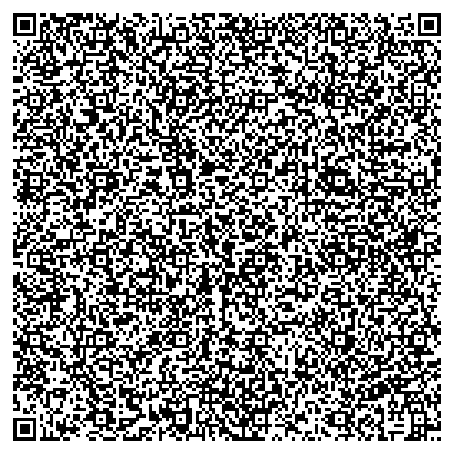
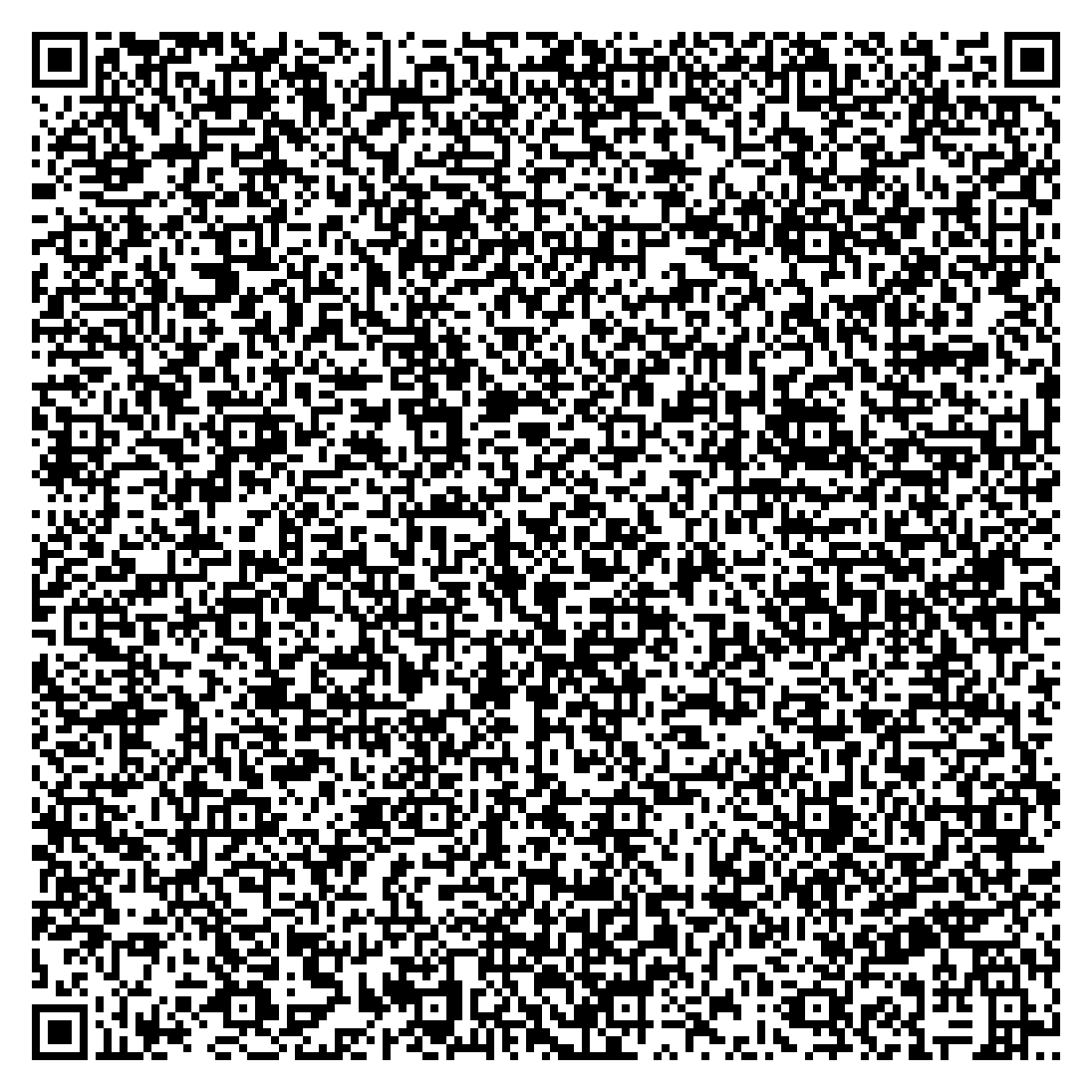
- SVG or PNG: just the code, to put on your own sign, menu or welcome board. Keep the white border around it and don’t invert the colours.
- Test it: scan the printed sign with two or three different phones, in the light where it will stand.
- Keep a fallback: a printed seating list or poster for guests without signal or a camera.
Sample QR sign
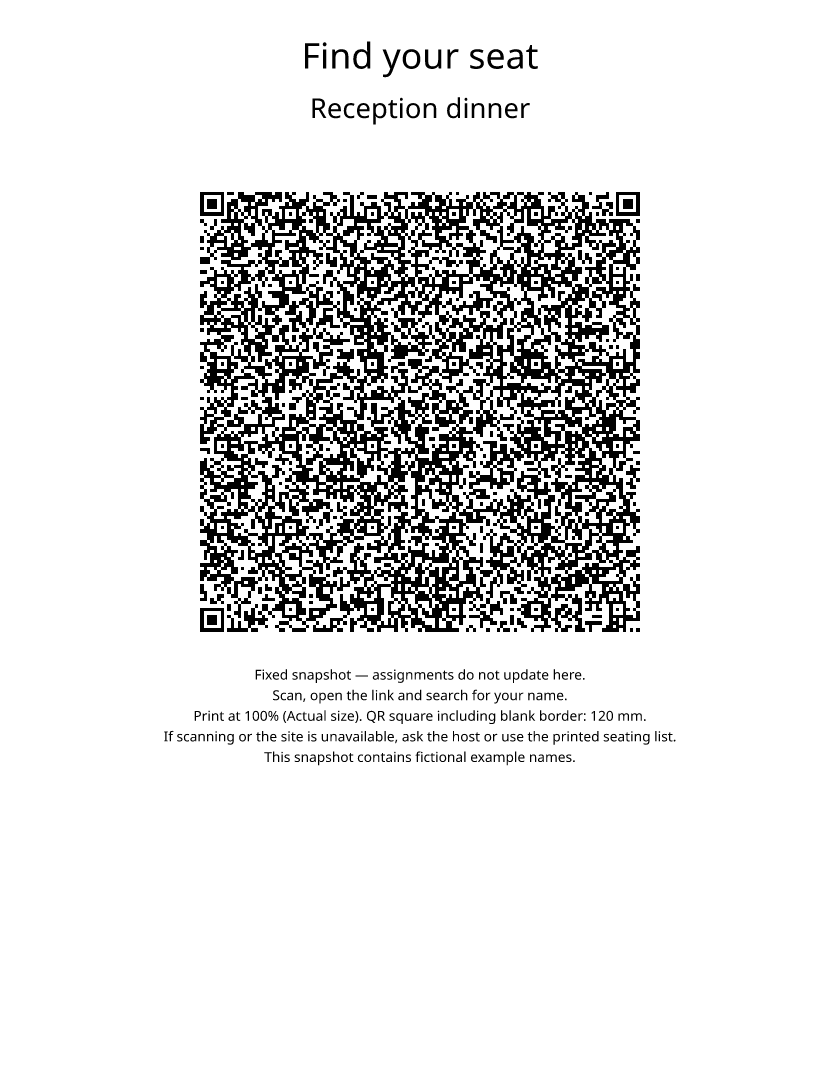
PDF, Letter · PDF, A4 · QR, SVG · QR, PNG
For the names themselves, make a poster with the seating chart sign maker or escort cards with the seating card maker. To plan the tables first, start with the wedding seating chart generator.
Frequently asked questions
How does a seating chart QR code work?
The QR holds a link to a read-only copy of your chart. Guests scan it with their phone camera, the chart opens in the browser, and they type their name to see their table and seat, highlighted on the floor plan. No app or account is needed.
Is it free?
Yes. The QR code, the guest view, and the SVG, PNG and PDF downloads are free, with no sign-up and no watermark.
Can I change the seating after printing the QR?
Not on the same code. The QR holds a fixed copy of the chart as it was when you made it. If seats change, make a new QR and replace the sign; anyone who saved the old link still sees the old chart.
Can guests see only their own seat?
No. Searching is just a convenience. Anyone who scans the code, or photographs the sign, can see every name in the chart. Notes, rules and locks are left out.
How many guests fit in one QR code?
Up to about 90 to 100 guests at Standard error correction, and fewer at the higher level. In our examples, charts of 84, 92 and 96 guests fit at Standard and charts of 115 and 120 did not; at the higher level a 42-guest chart fits and an 84-guest one does not. Long names and big rooms take more space; the tool tells you right away if a chart doesn’t fit.
Do guests need internet?
Yes, to open the page. Keep a printed seating list or the sign maker’s A–Z poster at the entrance for anyone without signal. Make a seating chart sign.