How to use the Excel seating chart template
- Download the template. Download the Excel template below, or open it in Google Sheets.
- List your guests. Type one guest per row on the Guests sheet, with their household, meal and RSVP.
- Give each guest a table. Type a table number in the Table column. The Tables sheet counts who is seated at each table and how many seats are free.
- Import it here. Above, choose Add people, then Import a file, and pick your spreadsheet. Guests with a table number go to that table.
- Seat the rest and print. Press Smart arrange to seat anyone without a table, then download the PDF floor plan or the updated Excel file.
Download the Excel seating chart template
Download the Excel template (.xlsx), or just the guest list (.csv) for any spreadsheet app. It opens in Excel, Google Sheets, Numbers and LibreOffice.
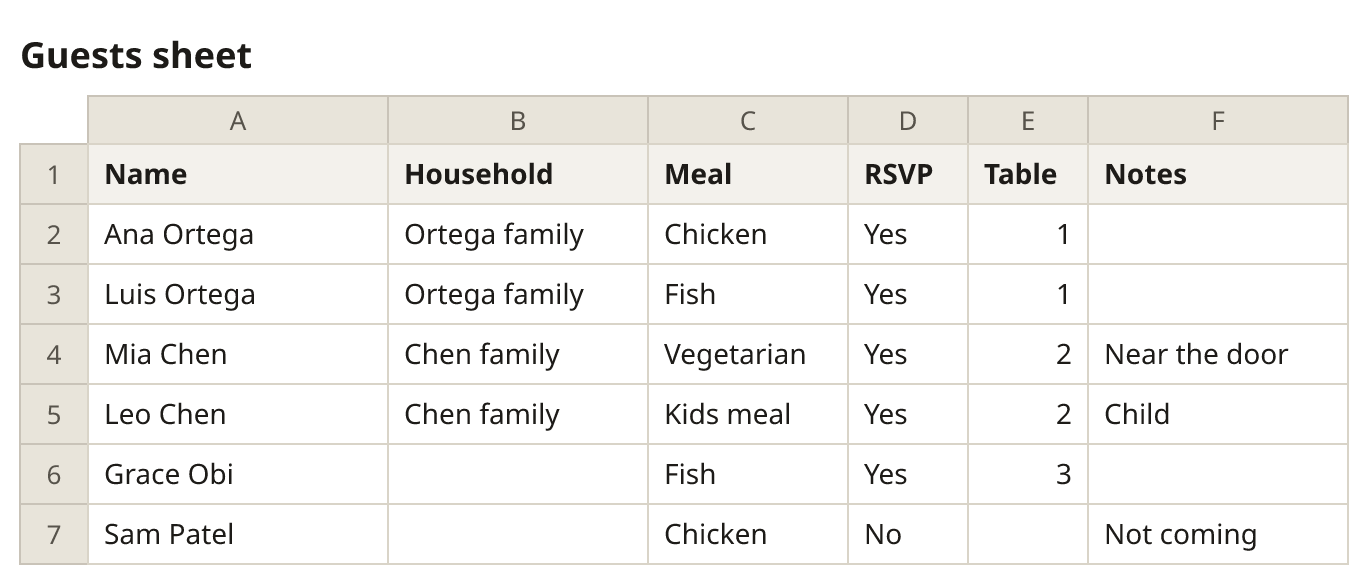

The workbook has three sheets:
- Guests: one row per guest, with Name, Household, Meal, RSVP, Table and Notes. Six example rows show the format; type over them.
- Tables: ten tables of ten seats to start; change the seats or add rows for more tables. Seated counts the guests you’ve put at that table and Free shows the seats left, with totals at the bottom.
- How to use: the steps on this page, in short.
How to make a seating chart in Excel
- On the Guests sheet, type one guest per row. Give people who should sit together the same Household, such as “Ortega family”.
- Type a table number in the Table column for each guest who is coming. Leave it blank if you haven’t decided.
- On the Tables sheet, list every table with its number of seats: 10 at a 72-inch round table, 8 at a 60-inch round.
-
The Seated column counts guests at each table with
=COUNTIF(Guests!E:E,A2), and Free is=B2-C2. Copy both down for more tables. A negative Free means a table has too many people. - To print a list for each table, select the Guests data and sort by Table (Data > Sort). For an A–Z list for the entrance, sort by Name.
What Excel can’t do well is the room itself: which table is where, who sits in which seat, and whether two households fit at one table without splitting. That’s what the generator above is for.
Turn the spreadsheet into a floor plan
Press Use this layout above to clear the example guests, then choose Add people and Import a file, and pick your spreadsheet. The columns are recognised by their headings: households stay together, meals become tags you can colour, and guests with a table number are seated at that table (missing tables are added). Guests marked No in the RSVP column are left out. Press Smart arrange to seat everyone else, drag anyone you want to move. Under Print & export, download the PDF, or Excel (.xlsx) to get the finished list back with every table and seat filled in.
Use it in Google Sheets
Upload the .xlsx file to Google Drive and open it with Google Sheets: the sheets and the counting formulas work the same way. When the list is ready, choose File > Download > Microsoft Excel or CSV and import that file above, or select the rows, copy them and paste them into Add people.
Excel or the generator?
| Job | Excel template | Generator |
|---|---|---|
| Collect names, meals and RSVPs | Good: share the sheet, filter, sort | Paste or import the list |
| Count seats per table | COUNTIF formulas | Counted in the table list and the PDF |
| Draw the room to scale | No | Yes, with a PDF to print |
| Keep households together | By hand | Smart arrange |
| Seat-by-seat place cards | By hand | Seat numbers and the card maker |
Most people use both: the spreadsheet for the guest list, the generator for the room.
More templates
- Wedding seating chart template: printable rooms of 8 to 20 tables, with its own Excel guest list and a Word version.
- Classroom seating chart template: an Excel class roster and printable desk layouts.
- Printable seating chart: blank charts for round tables, long tables and theater rows.
- Step by step: how to make a seating chart.
Frequently asked questions
Is there a free seating chart template for Excel?
Yes. The template on this page is a free .xlsx file with a Guests sheet, a Tables sheet that counts seats, and instructions. No sign-up and no watermark.
How do I make a seating chart in Excel?
Put one guest per row with a Table column, then list each table and its seats on a second sheet and count guests with =COUNTIF(Guests!E:E,A2). Sort by Table for a list per table, or by Name for an A–Z list.
Does it work in Google Sheets?
Yes. Upload the file to Google Drive and open it with Google Sheets. The counting formulas work there too.
Can Excel draw the floor plan?
Not easily: you can draw circles with Insert > Shapes, but they don’t know who sits at them. Import the spreadsheet into the generator above to get a floor plan drawn to scale with every name in place.
Which files can I import?
Excel (.xlsx, .xls), CSV, Numbers, OpenDocument (.ods) and plain text. You can also copy rows from any spreadsheet and paste them.
What happens to guests who declined?
If your sheet has an RSVP column, guests marked No are left out when you import (you can untick that), and guests who haven’t replied are tagged so you can find them.