How to Make a Seating Chart
Five steps that work for a birthday, a gala, a class or a meeting, from the guest list to a chart people can read, by hand or with a free online helper.
The example on this page is a 40th birthday dinner: 40 guests in eight groups of family and friends, at six round tables of eight. The same steps work for any event.
Five steps
1. List everyone
Write one name per line and note the group each person belongs to: a household, a team, a class, a group of friends. You’ll seat groups, not individuals, which is much faster. Note anyone with a fixed place (the host, a speaker, someone who needs to be near the door).
2. Set up the room
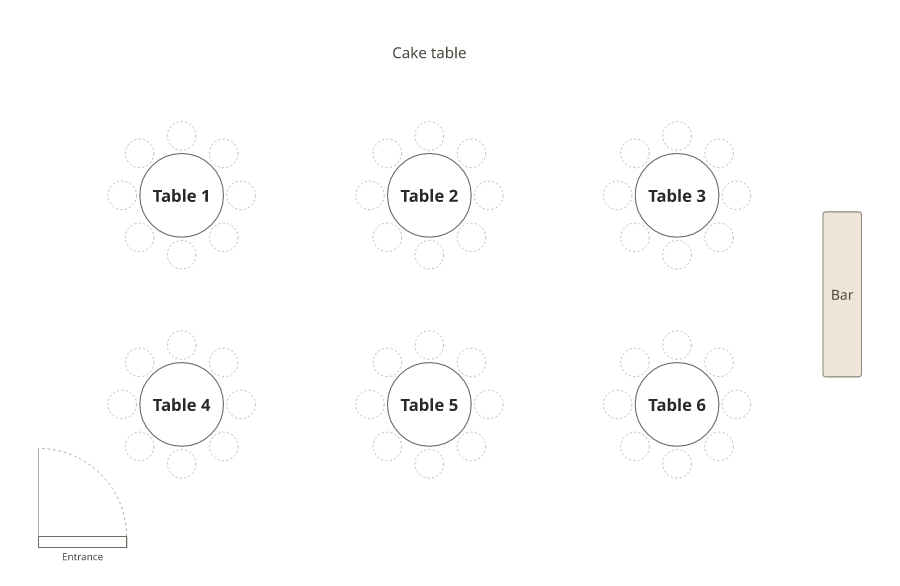
Divide the number of people by the seats per table and round up: 40 guests at tables of 8 is 5 tables, so use 6 to leave room for changes. Then place the tables around the things that can’t move: the stage, the board, the doors, the bar, the food.
3. Seat the groups
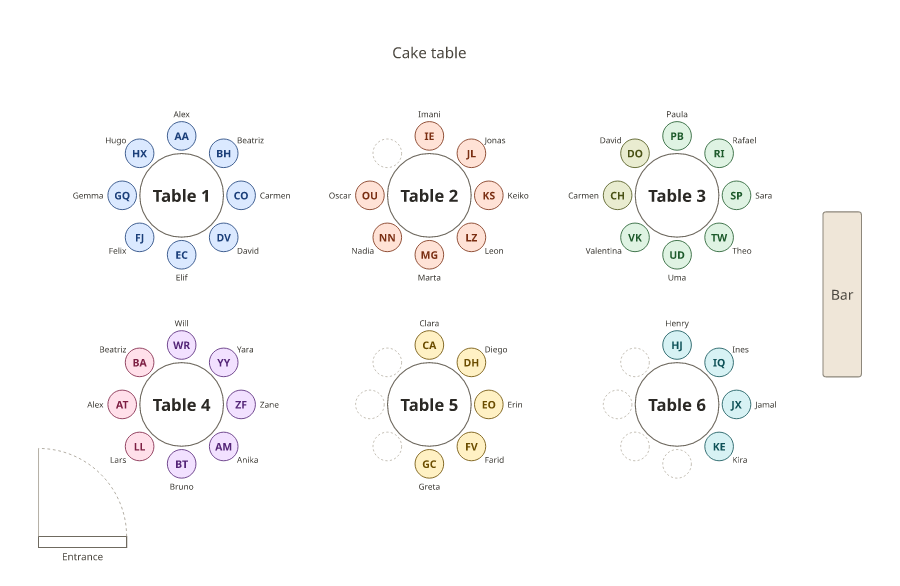
Seat the fixed places first, then the largest groups, then fill the gaps with the smaller ones: here, the cousins and the school friends share tables with the work group and the neighbours. Keep apart anyone who shouldn’t sit together, and give a guest who knows nobody a table of friendly people.
4. Check it
- Everyone has a seat, and no table has more people than chairs.
- No group is split by accident.
- People who need an aisle, a view of the front or a quiet spot have one.
- Children sit with a parent, unless there’s a supervised kids’ table.
5. Print and share
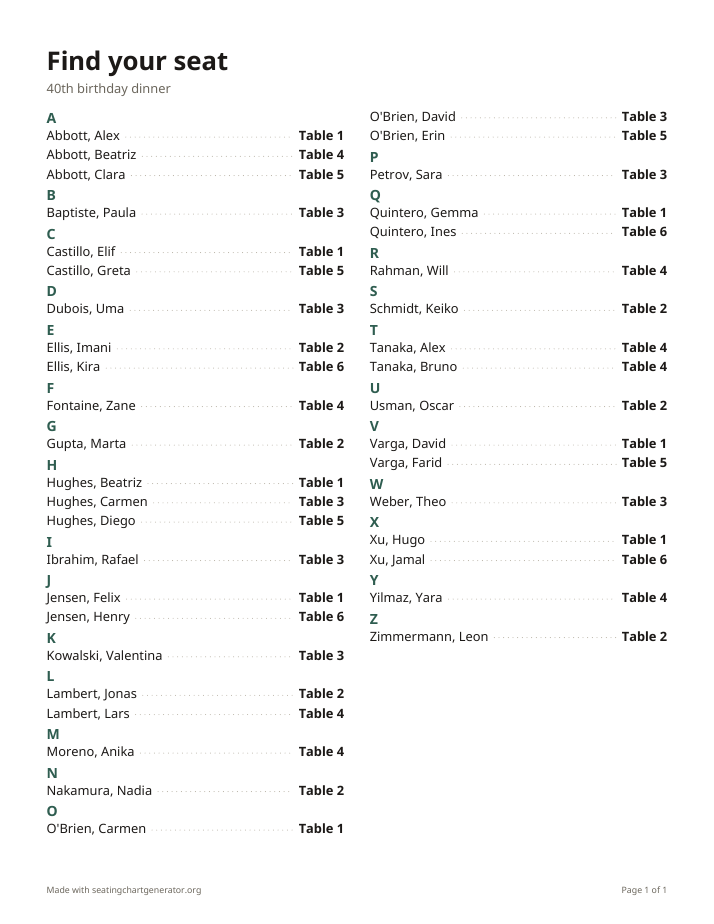
Print an alphabetical list for the entrance (it’s the quickest way to find a name), the floor plan for whoever sets up the room, and a list for each table if food is being served. For a sign or cards, use the same list so they all agree.
Make a seating chart online
- Add people. Paste a list of names, or import a spreadsheet. Households and groups come across with the names.
- Add tables. Round, long, head and U-shape tables, rows of chairs and desks; drag them into place and add the stage, bar and doors.
- Set rules. In Arrange, “Add a rule” keeps people together, apart or near someone, and “Keep households together” keeps groups whole.
- Press Smart arrange. It seats everyone and follows your rules; drag anyone you want to move, and lock the seats that mustn’t change.
- Print & export. “Download PDF” gives the floor plan, the find-your-seat list (A–Z) and a list for each table. You can also save a PNG, SVG or CSV, or share a read-only link.
By hand or in a spreadsheet
- On paper: draw the room with a circle for each table, write each name on a sticky note and move the notes until it works. Photograph the result before anything falls off.
- In a spreadsheet: columns for Name, Group and Table. Sort by Table to read each table’s list and by Name for the alphabetical list. Count each table with a pivot table or COUNTIF so no table is over.
- Moving to a generator later is easy: copy the Name column (and Group, if you have it) and paste it in.
Seating chart tips
- Biggest groups first. Small groups and single guests fill the gaps easily; big ones don’t.
- Leave a seat or two spare for a late reply or a surprise guest.
- Lock the fixed seats (host, speaker, head table) before rearranging anything else.
- Write rules down, not in your head. “Keep these two apart” is easy to forget at table seven.
- Colour by group so a split group stands out at a glance.
- Number tables in reading order, left to right and front to back, so helpers can find them.
- One master list. Make every change in one place so the sign, the cards and the staff lists agree.
- Keep a backup: save the plan file and bring a printed A–Z list on the day.
For a particular event
- Weddings: how to make a wedding seating chart, who sits where and the wedding seating chart generator.
- Classrooms: the classroom seating chart generator and classroom seating arrangement ideas.
- Galas, dinners and conferences: the event seating chart generator and types of seating arrangements.
- Signs and cards: the seating chart sign maker and the seating card maker.
Frequently asked questions
What is the easiest way to make a seating chart?
Paste your names into a free seating chart generator, add your tables, press Smart arrange and move anyone you like by hand. You get a floor plan and an alphabetical list without drawing anything.
Can I make a seating chart in Excel or Google Sheets?
Yes: one row per person with Name, Group and Table columns. Sort by table for each table’s list and by name for the alphabetical list. A spreadsheet can’t show the room, so for a floor plan, paste or import the same list into a seating chart generator.
How many people fit at a table?
A 60-inch round seats 8, a 72-inch round 10, a 6-foot rectangle 6 (8 with one at each end) and an 8-foot rectangle 8 (10 with ends). Check your venue’s tables; sizes vary.
Should I assign seats or just tables?
Tables are enough for most events: people choose their own seat at their table. Assign exact seats for a head table, a formal dinner, a served meal where staff need to know who ordered what, or a classroom.
How do I share a seating chart with guests?
Print an alphabetical list for the entrance, or share a read-only link where people look up their own name. In this generator, the plan travels inside the link itself and isn’t uploaded.
Is there a free seating chart helper?
Yes. The seating chart generator on this site is free, with no sign-up. It seats everyone by your rules, and your plans are stored in your own browser.