How to make an office seating chart
- Draw the office. Start from the example or blank, then add groups of desks, single desks or long benches from the Add menu and drag them where they are.
- Add your people. Paste a staff list or import it from Excel, with each person’s team and notes such as “standing desk”.
- Set the rules. Keep a team together, keep two teams apart, or seat someone near the door or the kitchen.
- Assign the desks. Press Smart arrange to seat everyone by your rules, then drag anyone you want to move or lock a desk.
- Share the plan. Download the floor plan as a PDF or image, or the desk list as Excel.
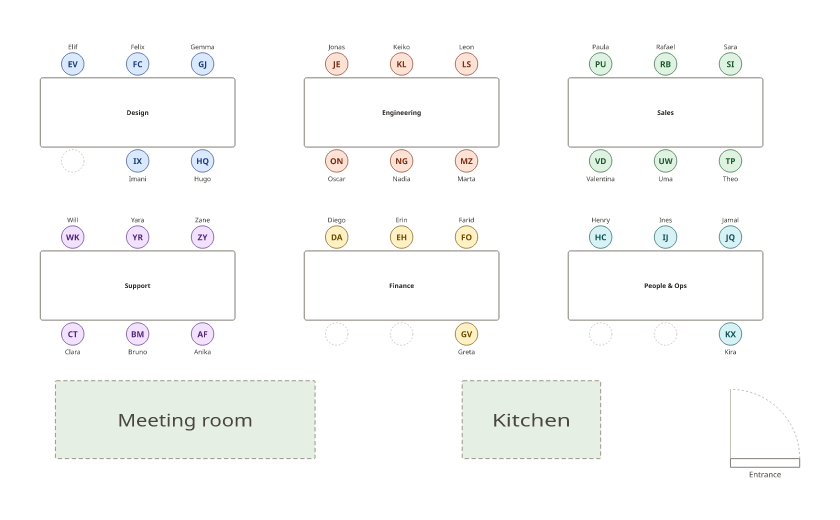
The chart above is an office of 31 people in six teams, at six groups of six desks with a meeting room, a kitchen and the entrance. Each team sits at its own group of desks; five desks are free. Press Use this layout to keep the floor and clear the example names.
Seat each team together
Teams work like households at a wedding: people in the same team sit together whenever they can. Make it a must with a keep together rule, and separate two teams with keep apart (the example keeps Sales, on the phone all day, away from Engineering). Rules can also seat someone near the door, near the kitchen or at a particular group of desks, which helps with access needs or a team lead who should sit with their team.
Office seating layouts
- Groups of desks (pods): four, six or eight desks facing each other. Good for teams that talk all day.
- Rows of benches: long tables with desks on both sides. Fits the most people in an open-plan floor.
- Single desks: for private or quiet corners, or a reception desk.
Add any of them from the Add menu, set the number of desks, and drag them into place. Draw meeting rooms and kitchens as areas so you can seat people near them.
Hybrid offices and hot desks
If not everyone comes in every day, plan the busy days. Copy the plan under My plans, keep the people who come in on that day, and press Smart arrange; teams still sit together. Tag part-time staff so you can see them at a glance. This is a planning tool, not a desk booking system: there is no check-in or calendar.
Desk allocation in Excel
Import your staff list from Excel or CSV (name, team, notes) with Add people, then download the finished allocation from Print & export as an Excel file: one row per person with their team, desk group and seat, and a sheet listing every desk.
Office seating plan template
With names: PDF, Letter · PDF, A4 · Excel · Blank: PDF, Letter · PDF, A4
For a classroom, use the classroom seating chart generator; for a meeting room, see U-shape seating chart templates.
Frequently asked questions
Is there free office seating chart software?
Yes, this one: draw the floor, add your people and assign desks, free and with no sign-up. It makes seating plans; it isn’t a desk booking system.
Is there an office seating plan template?
Yes. Download the example office as a PDF or Excel file below, or press Use this layout above to keep the desks and clear the example names.
How do I seat each team together?
Give everyone a team when you add them; people in the same team sit together when they can, and a “keep together” rule makes it a must. Add “keep apart” to separate a noisy team from a quiet one.
Can I plan desks for a hybrid office or hot-desking?
You can plan each office day: copy the plan under My plans, keep only the people who come in that day, and press Smart arrange. Leave some desks free for visitors. There’s no booking or check-in.
Can I allocate desks in Excel?
Yes. Import your staff list from Excel or CSV, and download the finished desk allocation as an Excel file with each person’s team, desk and seat.
Do our staff names leave my computer?
No. The plan stays in this browser on this device. Download the plan file to keep a backup or to share it with a colleague.