How to use the Google Sheets seating chart template
- Open it in Google Sheets. Download the template, upload it to Google Drive and open it with Google Sheets.
- List your guests. Type one guest per row in the Name column of the Guests sheet.
- Fill in the chart. On the Chart sheet, type or paste each guest’s name into a seat under their table.
- Check the list. The Guests sheet shows every guest’s table and seat, and says Not seated or Seated twice where needed.
- Draw the room. Download the sheet as .xlsx and import it above to get a floor plan, or press Smart arrange to seat everyone for you.
Download the Google Sheets seating chart template
Download the template (.xlsx), upload it to Google Drive and open it with Google Sheets (or choose File > Import in a new spreadsheet). It has three sheets:
- Guests: type everyone’s name here. Table, Seat no. and Check fill in by themselves.
- Chart: the seating chart itself, ten tables of ten seats. Type or paste a name into a seat under its table. Seated and Free count each table.
- How to use: these steps, in short.
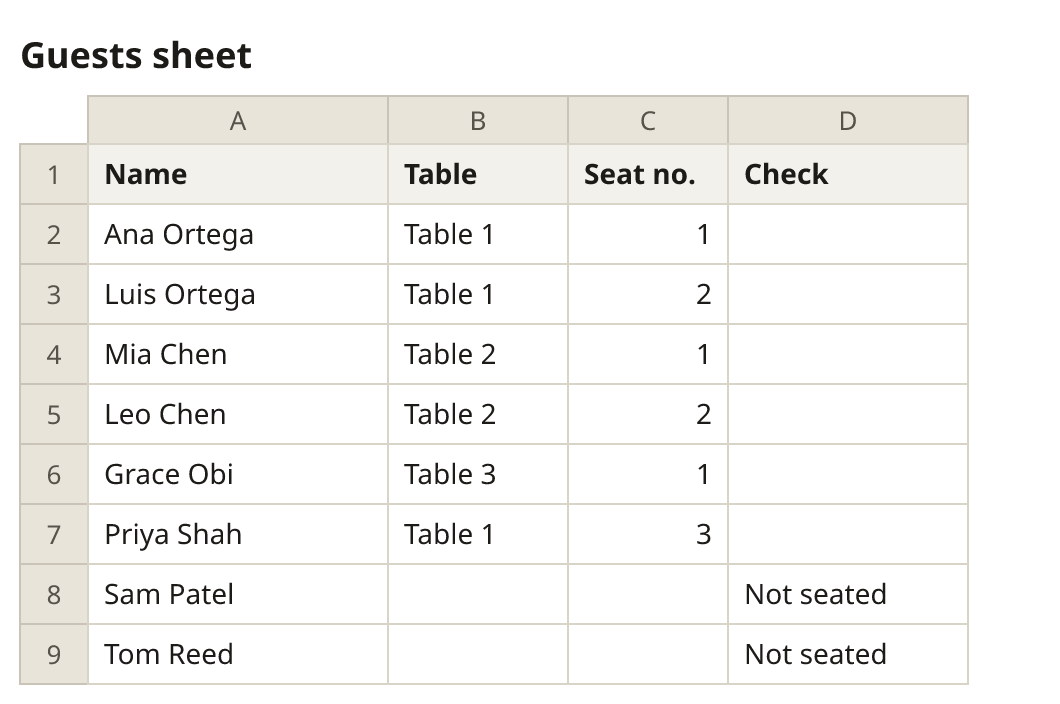
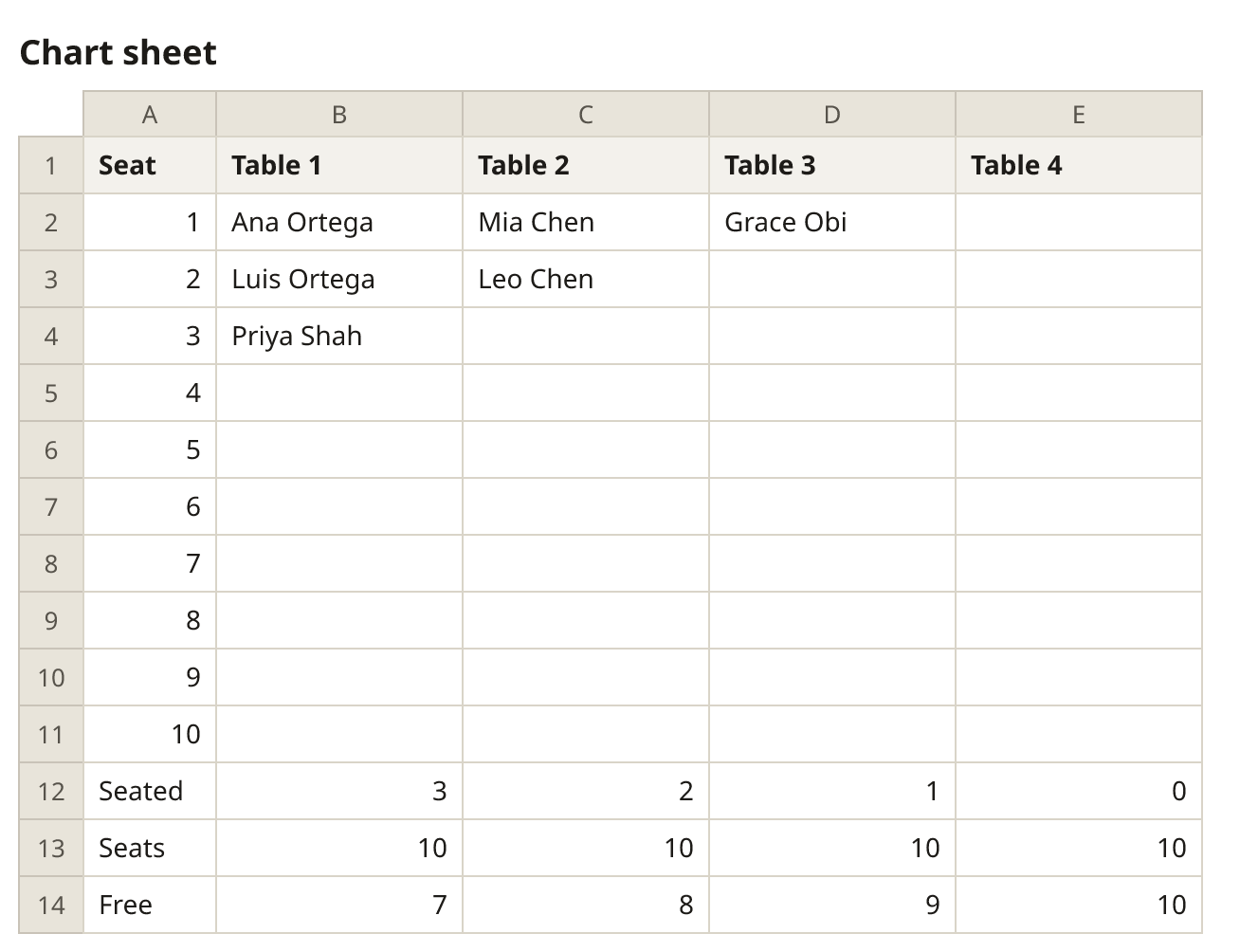
Rename “Table 1” and the others to your table names, and change Seats to each table’s size. For more tables, insert columns between Table 1 and Table 10; for more seats, insert rows between seat 1 and seat 10. The formulas follow. Names must be spelled the same on both sheets.
Turn the sheet into a floor plan
In Google Sheets, choose File > Download > Microsoft Excel (.xlsx). Above, press Use this layout to clear the example guests, then Add people and Import a file: everyone you placed in the chart sits at that table, and the rest wait in the list. Press Smart arrange to seat them, then print the floor plan as a PDF. You can also copy the Name and Table columns and paste them into Add people.
Google Docs seating chart templates
These Word templates open in Google Docs: upload the .docx file to Google Drive, then open it with Google Docs.
- A–Z find-your-seat list: Guest and Table, 32 rows a page.
- Chart by table: 12 tables of 10 on one landscape page.
- Round tables of 10: a numbered list of seats for each table.
More, with pictures, on the seating chart template for Word page.
A seating chart in Google Slides
Slides suits a classroom chart you show on the board. The PowerPoint seating chart template opens in Google Slides (upload it to Google Drive, then open it with Google Slides): a classroom of 30 desks, round tables that move with their chairs, and a sign by table. More on the PowerPoint template page. To draw your own, use Insert > Shape and duplicate with Ctrl+D (⌘D on a Mac), or make the plan above, download the PNG image from Print & export and choose Insert > Image on a slide.
Frequently asked questions
Is there a free seating chart template for Google Sheets?
Yes. Download the template on this page and open it in Google Sheets. It’s free, with no sign-up here; you need a Google account to use Sheets.
How do I open the template in Google Sheets?
Upload the .xlsx file to Google Drive, then open it with Google Sheets. Or, in a new spreadsheet, choose File > Import > Upload.
Is there a seating chart template for Google Docs?
Yes. The Word templates (an A–Z list, a chart by table, and lists for round tables) open in Google Docs: upload the .docx file to Google Drive and open it with Google Docs.
Can I make a seating chart in Google Slides?
Yes. Open the PowerPoint seating chart template in Google Slides (upload it to Google Drive first), draw tables with Insert > Shape, or insert a PNG of the plan made above.
Does the template work in Excel too?
Yes. The formulas work in Excel and Google Sheets. For a guest list with seat counts per table, see also the Excel seating chart template. See the Excel template.
Can I share the seating chart?
In Google Sheets, use Share to edit it with a partner or planner. The chart above saves on your device; to pass it on, download the Plan file from Print & export, then choose “Open a plan file” on the other device.