How to use the PowerPoint seating chart template
- Download the template. Download the .pptx file below and open it in PowerPoint, Keynote or Google Slides.
- Pick a slide. Use the classroom, the round tables or the sign by table, and delete the slides you don’t need.
- Type the names. Click a desk, a chair or a “Guest name” line and type. Copy desks or tables with Ctrl+D (⌘D on a Mac).
- Arrange the room. Drag desks and tables to match your room. Each round table moves with its chairs.
- Print or show it. Show it on the board, print it, or export it as a PDF.
Download the PowerPoint seating chart template
Download the template (.pptx): one file with the three slides below. Every desk, chair and line is a shape you can type into, move, copy or delete.
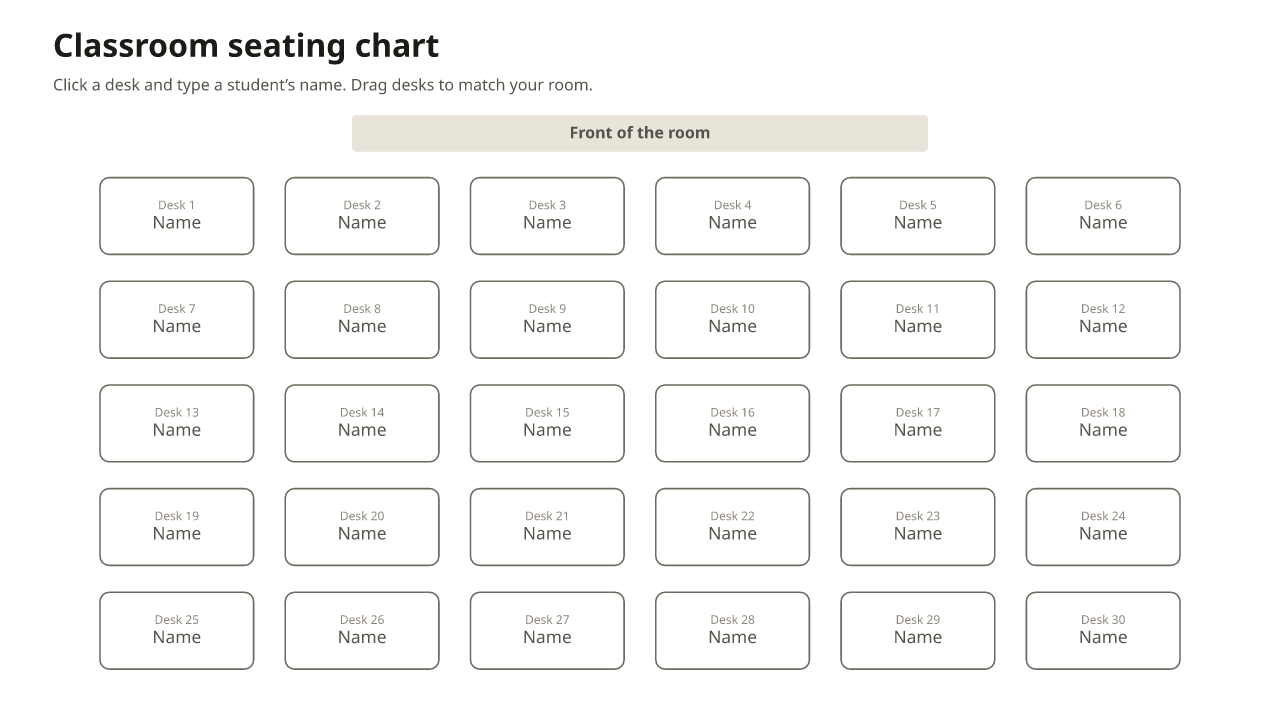
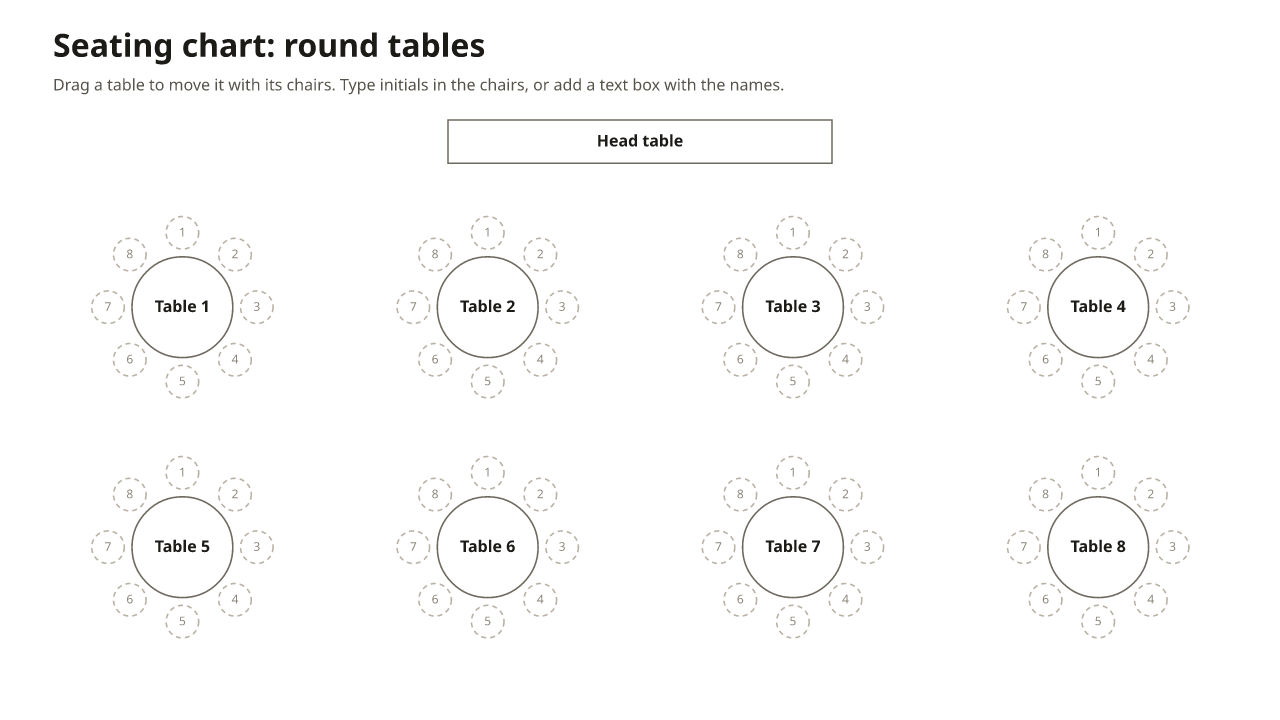
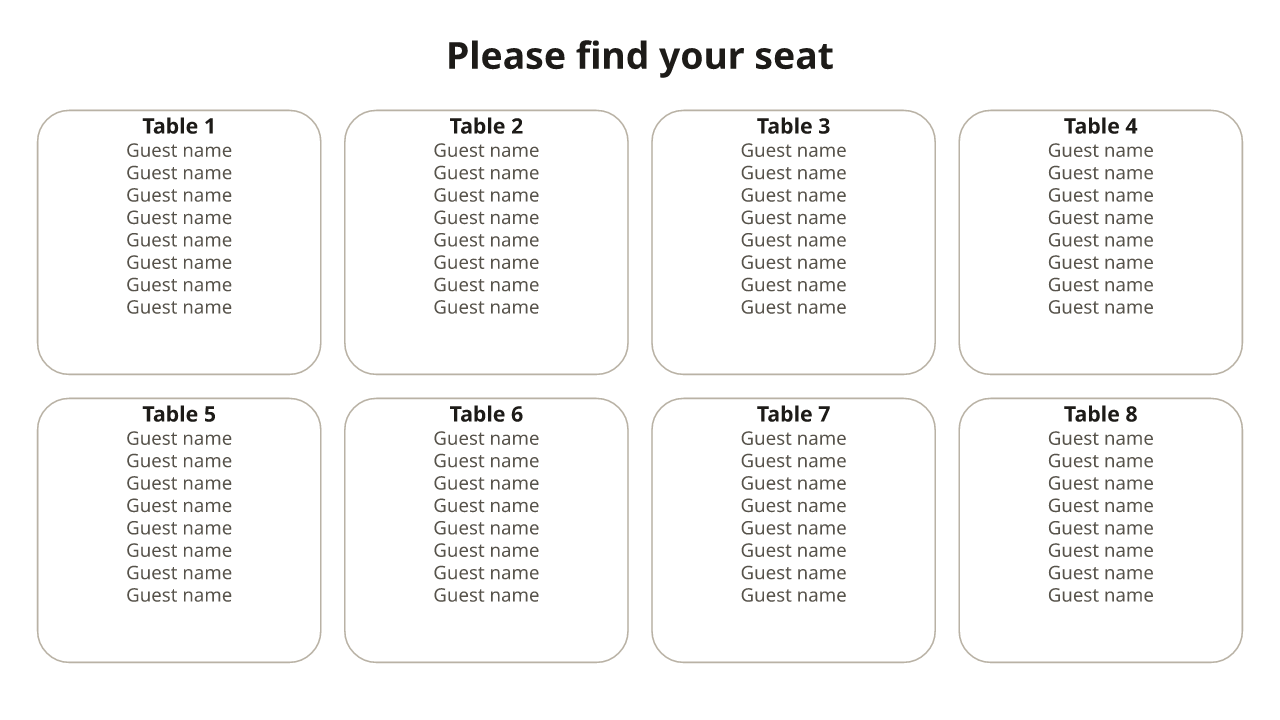
How to make a seating chart in PowerPoint
- Start with a blank slide. For a classroom, add a bar or a text box at the top for the front of the room.
- Choose Insert > Shapes and draw one desk (a rectangle) or table (an oval). With it selected, type the name.
- Copy it with Ctrl+D (⌘D on a Mac) until you have enough, then line them up with Align on the Shape Format tab.
- For a table with chairs, draw small circles around it, select the table and its chairs, and Group them so they move together.
- Print it, or choose File > Export to save a PDF.
PowerPoint is handy for a chart you show on the board or edit by dragging. It doesn’t know who still needs a seat, and moving one student means retyping two desks. The chart above keeps the class or guest list, follows rules like “keep apart”, and can shuffle a class in one click; download its PNG image from Print & export to put the result on a slide.
Google Slides and Keynote
Upload the .pptx file to Google Drive and open it with Google Slides; the shapes and groups come across, and you can share the deck with a co-teacher. On a Mac, Keynote opens it directly. If the font looks different, the template uses Calibri; any clear sans-serif works. More Google options are on the Google Sheets seating chart template page.
More templates
- Classroom seating chart template: printable rows, pairs, groups and U-shape, plus Word and Excel.
- Seating chart template for Word: an A–Z list and a chart by table.
- Round table seating chart templates: one table of 6 to 12 to print.
Frequently asked questions
Is there a free PowerPoint seating chart template?
Yes. The .pptx file on this page is free, with three editable slides: a classroom, round tables and a sign by table. No sign-up and no watermark.
How do I make a seating chart in PowerPoint?
Insert a shape for each desk or table (Insert > Shapes), type a name into it, and copy it with Ctrl+D. Line them up with Align, and group a table with its chairs so they move together.
Does it work in Google Slides?
Yes. Upload the .pptx file to Google Drive and open it with Google Slides. Keynote on a Mac opens it too.
Can I print it as a poster?
Yes. Change the slide size under Design > Slide Size (for example 24 × 36 in) and let PowerPoint scale the content, then print or export a PDF for a print shop.
Can PowerPoint seat everyone for me?
No: in PowerPoint you place every name by hand. The chart above seats a whole class or guest list with Smart arrange or Shuffle, and you can download the plan as a PNG and put it on a slide.
Is there a classroom seating chart for Word or Excel?
Yes, on the classroom seating chart template page: a Word grid of 30 desks and an Excel class roster. See the classroom templates.