Seating Charts in PowerSchool, Skyward, Schoology and Focus
Where each school system keeps its seating chart, what it’s for, and when to plan the chart in a seating chart generator first.
Most school information systems include a seating chart, mainly so teachers can take attendance by clicking seats. Menus differ by version and by what your district has turned on, so treat the steps below as a guide and check your district’s help pages.
At a glance
| System | Seating chart | Mainly used for |
|---|---|---|
| PowerSchool (PowerTeacher Pro) | Yes, one or more per class | Attendance and calling on students |
| Skyward | Yes, with attendance | Attendance |
| Schoology | Shows PowerSchool’s charts; can’t create its own | Attendance through the PowerSchool connection |
| Focus | Yes, per class section | Attendance and recording behaviour |
PowerSchool (PowerTeacher Pro)
- On the PowerTeacher start page, open the seating chart for the class.
- In design mode, create a layout and add chairs, rows of chairs or table groups.
- Place students in the seats, or let it fill the chart and then move them.
- Save the layout; it can be reused as a template for other classes or other times of day.
- Switch to the seating chart view to take attendance or call on students at random.
Skyward
In Skyward’s teacher access (Educator Access Plus), seating charts sit with attendance: district guides describe creating a chart for each class from the attendance screen, arranging the seats, assigning students, and then taking attendance from the chart. Districts publish their own step-by-step guides, and the screens vary between versions.
Schoology
Schoology doesn’t create seating charts itself. Where it’s connected to PowerSchool, the charts teachers make in PowerSchool appear in Schoology’s PowerSchool attendance tool, and attendance can be taken from them there. To change the chart, change it in PowerSchool; new or dropped students can take a refresh to show.
Focus
- Open Seating Charts, in the main menu or under Attendance, depending on your district.
- Name a new chart for the class section, or link a layout you’ve already made.
- Start from a grid of desks (choose the front of the room, rows and columns), a blank room or a copy of a previous layout.
- Place students, then use the chart to take attendance.
Planning the chart first
A school system’s chart is the place to keep the final arrangement for attendance. Working out that arrangement is often easier elsewhere: trying rows against groups, keeping two students apart, seating students who need the front first, or reshuffling the class while avoiding last time’s neighbours.
- Copy your class list from your school system and paste it into the classroom seating chart generator.
- Choose a layout, add rules (keep apart, front row) and press Smart arrange, or Shuffle for a random chart.
- Print the floor plan for the wall or a substitute folder.
- Place students in your school system’s chart to match, so attendance follows the real room.
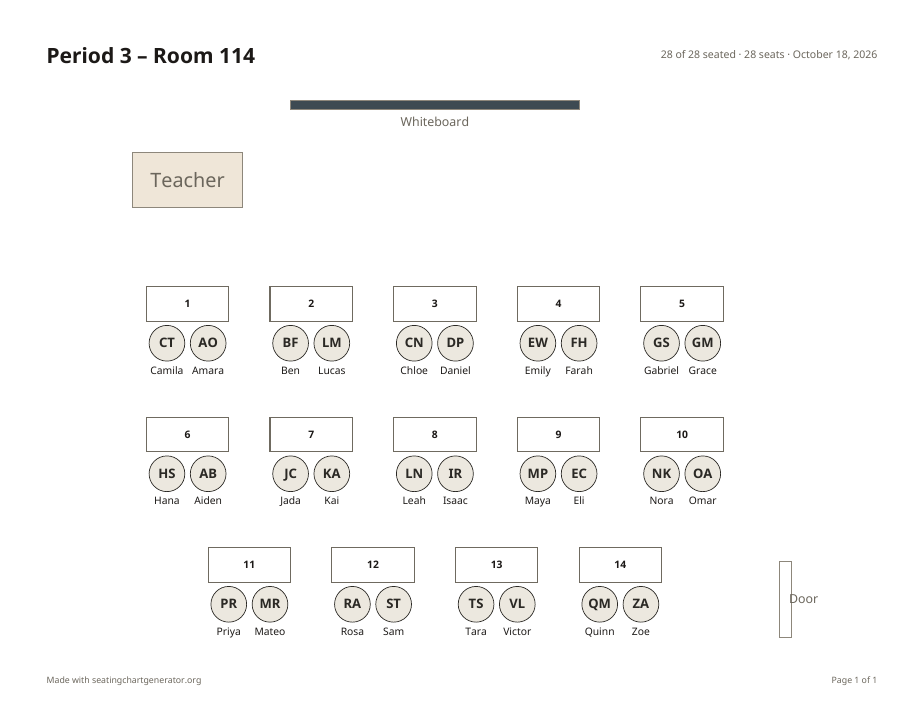
For layouts and research on what works, see classroom seating arrangement ideas and classroom seating arrangement research. The random seating chart generator is quickest for a fresh shuffle.
PowerSchool, PowerTeacher, Skyward, Schoology and Focus are trademarks of their respective owners. This site isn’t affiliated with or endorsed by any of them.
Frequently asked questions
Does PowerSchool have a seating chart?
Yes. In PowerTeacher Pro, each class has a seating chart: you lay out chairs, rows or tables in design mode, place students, and then use the chart to take attendance.
How do I make a seating chart in Skyward?
In Skyward’s teacher access (Educator Access Plus), seating charts are part of attendance. District guides describe setting one up from the attendance screen for each class; menus vary by district and version, so check your district’s Skyward help pages.
Can you make a seating chart in Schoology?
Not directly. Where Schoology is connected to PowerSchool, seating charts made in PowerSchool show up in Schoology’s PowerSchool attendance tool, where you can take attendance from them.
How do I create a seating chart in Focus?
Open Seating Charts (in the main menu or under Attendance, depending on your district), name a chart for the class section, start from a grid of desks, a blank room or a copy of another layout, then place students. You can use it to take attendance.
Can I import a seating chart into PowerSchool or Skyward?
We don’t know of a way to import one. Plan the arrangement wherever suits you, then place students in your school system’s chart to match, so attendance follows the real room.
Why don’t I see a seating chart option?
Districts choose which features teachers can use and when to update. If the option is missing or looks different, ask your district’s school-system administrator.