How to make a lunch seating chart
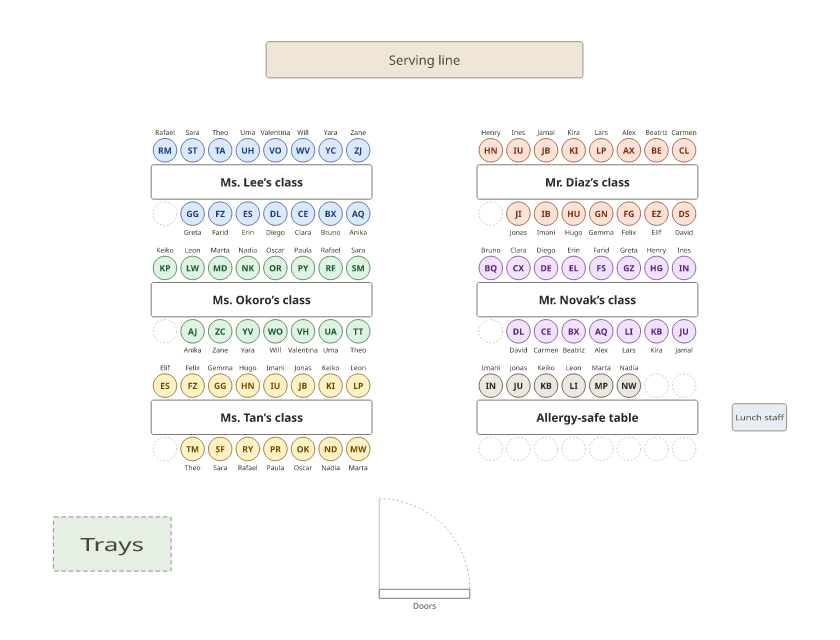
- Draw the lunchroom. Start from the example (six long tables, the serving line and the doors) and change the tables to match your cafeteria.
- Name the tables. Give each class its table or tables, and name one the allergy-safe table if your school uses one.
- Add the students. Paste each class list, with every student’s class as their group and any allergy as a tag.
- Seat the lunch period. Press Smart arrange: classes sit together, and a rule keeps students with an allergy at the allergy-safe table.
- Print for the lunch staff. Download the PDF: the lunchroom with names and a list for each table.
The chart above is one lunch period: five classes of 15 at their own long tables, named by teacher, and an allergy-safe table near the lunch staff for six students with a nut allergy. Press Use this layout to keep the lunchroom and add your own classes.
Why assigned lunch seats help
- Calmer and quicker. Students know where to go, so lines move and more of the period is spent eating.
- Nobody left out. New and quieter students have a place, and you can seat buddies together.
- Safer. Staff can find any student, and students with allergies sit where the right staff can see them.
An allergy-safe table
Follow your school’s allergy plan; the chart only helps you carry it out. Tag students with an allergy, and a seat at rule keeps them at the allergy-safe table. Put that table near the lunch staff and away from the serving line, and let friends with allergen-free lunches sit with them. The table list in the PDF shows the tags, so give it to the lunch staff, not the students.
Several lunch periods and monthly changes
Make one plan per lunch period: set up the room once, then duplicate the plan under My plans and paste the next period’s classes. When seats change each month, press Smart arrange again, or Shuffle for a fresh mix. For classroom seating, see the classroom seating chart generator.
Lunch seating chart template
With names: Letter · A4 · Blank: Letter · A4
Frequently asked questions
Why use a lunch seating chart?
Assigned lunch seats make the period calmer and quicker, help new students find a place, cut down on exclusion, and let staff find any student fast.
How do I seat students with food allergies?
Follow your school’s allergy plan. Many schools keep an allergy-aware table near the staff; tag the students and a rule seats them there. Let a few friends without allergens join them, so nobody eats alone.
Should classes sit together at lunch?
In elementary school, a table per class is easiest for staff. Older students can choose within a class table, or you can mix classes on purpose for a buddy program.
How often should lunch seats change?
Many schools change monthly or each term. Keep each version under My plans, and press Smart arrange or Shuffle for the new month.
Can I plan several lunch periods?
Yes. Make one plan per lunch period with the same room: duplicate the plan under My plans and change the classes.
Is there a lunch seating chart template?
Yes. Download the PDFs below, with names or blank, or press Use this layout above to keep the lunchroom and add your classes.